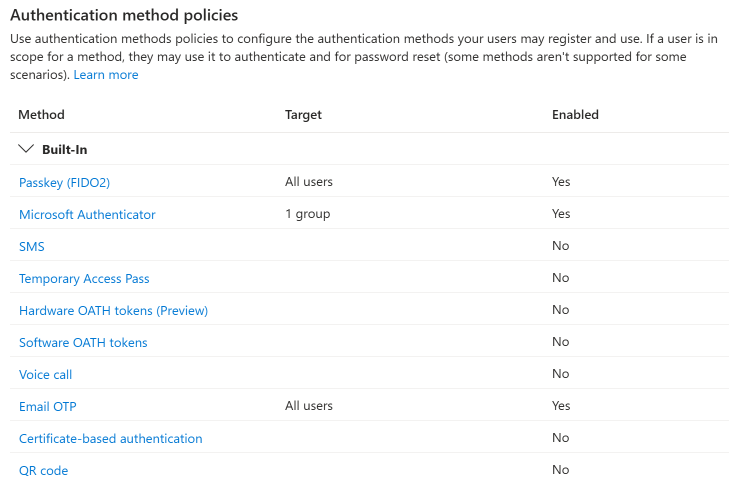
As of March 2026, passkey authentication is generally available in Microsoft Entra ID. Entra supports passkeys through three methods, each configured differently.
The three methods
Microsoft Authenticator app
Passkeys stored in the Authenticator app on iOS or Android. The passkey syncs via the platform’s credential manager (iCloud Keychain on iOS, Google Password Manager on Android), which means users can recover their passkey when they get a new phone - as long as they stay within the same platform ecosystem.
Entra also supports passkeys synced through other platform credential managers (iCloud Keychain directly, Google Password Manager) outside of Authenticator. These register through the Passkey (FIDO2) method in Entra and follow the same syncable vs device-bound trade-offs.
Best for: Most users in most organizations. Low friction, familiar app, built-in backup.
Passkeys (FIDO2)
This covers both hardware security keys (YubiKey, Feitian, Google Titan) and platform passkeys from third-party credential managers. Hardware keys store the private key on a physical chip that never leaves the device. Users plug in the key (USB) or tap it (NFC) and verify with a PIN or biometric on the key itself.
In Entra, FIDO2 passkeys are configured through passkey profiles under Protection > Authentication methods > Passkey (FIDO2). A profile controls attestation, passkey type (device-bound or syncable), and AAGUID restrictions. You can create up to 3 profiles and assign each to different user groups.
Best for: Privileged accounts, shared workstations, high-security environments, users who work across multiple devices and platforms.
Windows Hello for Business
Windows Hello uses the device’s TPM to store the private key. Users authenticate with their fingerprint, face, or PIN. No extra app or hardware required, but the passkey is tied to that specific device.
Unlike the other two methods, Windows Hello for Business is not configured in the Authentication methods blade. It’s configured through Intune device configuration profiles or Group Policy. In Entra, WHfB appears as a selectable method in Conditional Access authentication strengths for policy enforcement.
Best for: Users on managed devices who primarily work from one computer. No extra hardware to carry.
All three are phishing-resistant
The security model is the same across all three. The private key never crosses the network. WebAuthn binds each authentication to the specific website origin, so a phishing page on a lookalike domain can’t intercept the credential. There’s no password, no OTP, and no push notification to approve.
How they work together
These aren’t mutually exclusive. A typical Entra deployment looks like:
- Standard users get Authenticator passkeys as their primary method
- Admins and privileged roles get FIDO2 security keys with stricter Conditional Access policies
- Users on managed Windows devices also have Windows Hello as a convenient option
Each user can register multiple passkeys across different methods. If they lose one, they still have others - or your helpdesk can issue a Temporary Access Pass for re-enrollment.
Entra portal reference
Authenticator and Passkey (FIDO2) are managed in the Entra portal under Protection > Authentication methods, scoped to specific groups and targetable via Conditional Access. Windows Hello for Business is configured separately through Intune device configuration profiles or Group Policy, and is selectable as an authentication method in Conditional Access authentication strengths.