Not every application in your environment supports passkeys or even modern authentication. During the transition, you need a way to handle these legacy apps without leaving the door open for attackers.
Identifying legacy authentication
Legacy authentication refers to protocols that don’t support modern auth flows - and therefore can’t use passkeys or any other form of MFA:
- Basic authentication - username/password sent with every request (Exchange ActiveSync, IMAP, POP, SMTP)
Note: legacy authentication is different from modern apps that simply don’t support passkeys yet. A modern app using OAuth might support push MFA but not passkeys - that’s an app limitation, not legacy auth. Legacy auth protocols can’t do MFA at all.
- NTLM - older Windows authentication
- LDAP simple bind - direct LDAP authentication without SAML/OIDC
- App passwords - static passwords for apps that don’t support MFA
Finding them in your environment
Entra sign-in logs can tell you exactly which apps and users are still using legacy auth:
- Go to Entra portal > Monitoring > Sign-in events
- Add a filter for Client app and select the legacy authentication protocols (Exchange ActiveSync, IMAP, POP, SMTP, Other clients)
- Check both interactive and non-interactive sign-in tabs
- Review the results - note which apps, which users, and how frequently
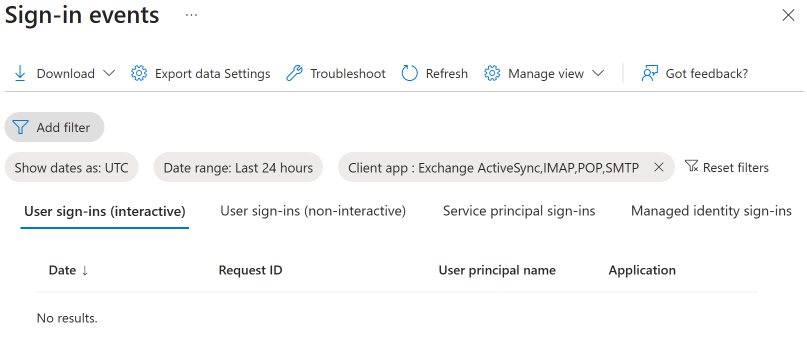
If this list is empty, you’re in good shape. If it’s not, each entry represents a workflow that needs to be migrated before you can fully remove passwords.
The coexistence strategy
During transition, you’ll likely have three categories of users:
Category 1: Fully passkey-capable - all their apps support modern auth. Apply phishing-resistant MFA via Conditional Access.
Category 2: Mostly capable, with exceptions - they use one or two legacy apps that still need a password. These users keep their password for those specific apps but use passkeys for everything else.
Category 3: Blocked by legacy - they primarily use apps that don’t support modern auth. These users stay on traditional MFA until the apps are migrated.
Conditional Access approach
Create separate CA policies for each category:
- Policy A: Require phishing-resistant MFA for all cloud apps - assign to Category 1 group
- Policy B: Require phishing-resistant MFA for all cloud apps except the specific legacy apps - assign to Category 2 group
- Policy C: Require standard MFA for all apps - assign to Category 3 group (temporary)
As apps get migrated, move users from Category 3 to 2 to 1.
Blocking legacy auth entirely
Microsoft has been blocking basic authentication for Exchange Online since October 2022. If you haven’t already, create a Conditional Access policy that blocks legacy authentication clients entirely:
- Create a new CA policy
- Users: All users (exclude break-glass accounts)
- Cloud apps: All cloud apps
- Conditions > Client apps: Select “Exchange ActiveSync clients” and “Other clients”
- Grant: Block access
This is separate from your passkey rollout but it removes the largest legacy auth surface area. If this policy already exists, your coexistence work is mostly about the line-of-business apps.
The timeline pressure
Legacy apps directly conflict with your security goals. As long as a user has both a passkey and a password, they’re vulnerable to downgrade attacks. Every legacy app that needs a password is a reason that password can’t be removed.
Map your legacy apps, assign owners, set migration deadlines, and track progress. The passwords can’t go until the legacy apps are migrated.