When a user registers a FIDO2 security key, how do you know they’re registering an approved device and not a random key they bought online? That’s what attestation and AAGUID allowlists solve.
What is attestation?
Attestation is a mechanism where an authenticator cryptographically proves its identity during registration. When a user creates a passkey on a FIDO2 security key, the key can include an attestation statement - a signed certificate chain that identifies the make and model of the hardware.
Think of it like a hardware key saying: “I’m a YubiKey 5 NFC, manufactured by Yubico, and here’s my certificate chain to prove it.”
The relying party (Entra, in this case) can verify this attestation statement to confirm the authenticator is genuine and belongs to an approved model.
What is an AAGUID?
Every FIDO2 authenticator model has a unique Authenticator Attestation Globally Unique Identifier (AAGUID). It’s a UUID that identifies the specific product line:
| Device | AAGUID |
|---|---|
| YubiKey 5 NFC | 2fc0579f-8113-47ea-b116-bb5a8db9202a |
| Security Key by Yubico | b92c3f9a-c014-4056-887f-140a2501163b |
| Feitian BioPass K26 | 77010bd7-212a-4fc9-b236-d2ca5e9d4084 |
| Google Titan Security Key v2 | 42b4fb4a-2866-43b2-9bf7-6c6669c2e5d3 |
Note: AAGUIDs vary by model and firmware version. Always verify the exact AAGUID for your specific hardware. Manufacturers publish these in their documentation.
Configuring attestation and AAGUIDs in Entra
Attestation and AAGUID restrictions are configured within passkey profiles. To set this up:
- Go to Protection > Authentication methods > Passkey (FIDO2)
- Open the Configure tab
- Click on a profile (or create a new one with + Add profile)
- In the profile settings:
- Enforce attestation - check this to require authenticators to prove their identity at registration
- Passkey types - when attestation is enforced, this is locked to “Device-bound” (attestation is only supportable for device-bound keys since the hardware must be present to provide the attestation certificate)
- Target specific AAGUIDs - check this to enable the allow/block list
- Behavior - select Allow or Block
- Model/Provider AAGUIDs - add the AAGUIDs of your approved (or blocked) hardware
- Save the profile
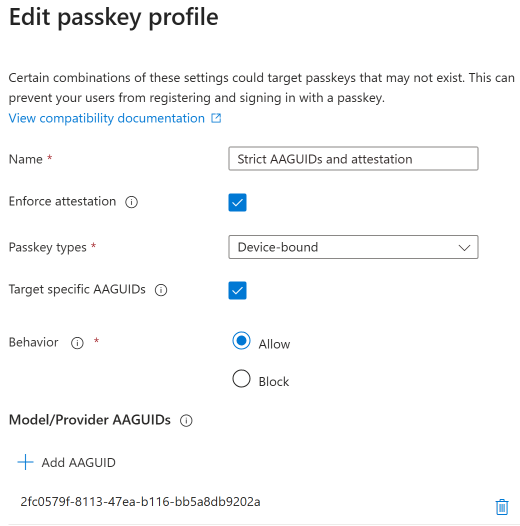
Then assign the profile to a group on the Enable and target tab. Users in that group will be restricted to the authenticators allowed by the profile. Users attempting to register a non-approved authenticator will get an error at registration time. Existing registrations from non-approved hardware are not affected retroactively.
Attestation and passkey types
Attestation is only supportable for device-bound passkeys. Syncable passkeys (iCloud Keychain, Google Password Manager) don’t provide hardware attestation because the key can leave the originating device - there’s no physical hardware to attest to.
When you check Enforce attestation in a passkey profile, the passkey type is automatically locked to device-bound. This means that profile will only allow hardware security keys and other device-bound authenticators.
If you need to allow syncable passkeys for a group of users, create a separate profile without attestation enforcement and assign it to that group.
When to use attestation and AAGUID filtering
Use it when:
- You distribute specific hardware keys to employees and want to ensure only those models register
- Compliance or policy requires hardware-bound authenticators from approved manufacturers
- You need to prevent users from registering personal or consumer-grade keys
- You’re deploying in a high-assurance environment
Skip it when:
- You’re in early pilot stages and want maximum flexibility
- Your users are bringing their own FIDO2 keys and you don’t need to restrict models
- You want to allow syncable passkeys (attestation forces device-bound only)
Finding your AAGUIDs
If you’ve already deployed hardware keys and want to find their AAGUIDs:
- Check the manufacturer’s documentation - Yubico, Feitian, and others publish AAGUID lists
- Look at existing registrations in Entra: Users > [user] > Authentication methods will show the registered key’s AAGUID
- The FIDO Alliance maintains a metadata service with AAGUID listings
A practical approach
For most organizations deploying FIDO2 security keys:
- Choose your hardware standard - pick 1-2 key models for your organization
- Look up their AAGUIDs from the manufacturer
- Create a passkey profile with attestation enforced and the approved AAGUIDs added
- Assign the profile to your privileged user groups on the Enable and target tab
- Keep the default profile (no attestation, broader access) for standard users
- Test registration with both approved and non-approved keys to verify the restriction works
- Document the approved models and where to order them for your procurement team