When a user loses their phone, security key, or laptop, their passkey may be gone with it.
Quick reference
For experienced helpdesk staff - the abbreviated flow:
- User reports device loss
- Verify identity (see Identity Verification)
- Check if user has other passkeys registered
- If no other passkeys: issue a TAP
- User signs in with TAP and registers a new passkey
- Remove the old passkey from the user’s authentication methods
- Initiate remote wipe if applicable
- Log the incident
Detailed process
Step 1: Receive the report
The user contacts helpdesk via phone, in-person, or email (from a personal account if they can’t access their work account).
Gather this information:
- What device was lost? (phone, security key, laptop, multiple)
- When was it lost? (timeframe helps assess risk)
- Where was it lost? (public place, at home, suspected theft)
- Does the user have other devices with passkeys registered?
- Was the device managed by the organization? (Intune-enrolled?)
Step 2: Verify identity
This step is the most critical part of the process. Nearly all authentication risk is shifted to this step when using phishing-resistant authentication methods.
An attacker who steals a phone may call helpdesk pretending to be the victim, hoping to get a TAP and register their own passkey. The identity verification process is your defense.
Follow the Identity Verification procedure. Document the verification method used.
Step 2a: Revoke active sessions
Especially for suspected-theft cases, revoke all active sessions for the user as soon as identity is verified. This invalidates any tokens still cached on the lost device so an attacker can’t keep using what’s already signed in, even before the passkey is replaced.
- Go to Entra portal > Users > [user] > Revoke sessions
- Confirm the revocation
See Microsoft’s Revoke user access in an emergency for the full mechanics and what it does and doesn’t cover. The Passkey Risk Assessment page lists session revocation as the primary mitigation for device loss / theft.
Step 3: Check existing passkeys
Before issuing a TAP, check if the user has other passkeys registered:
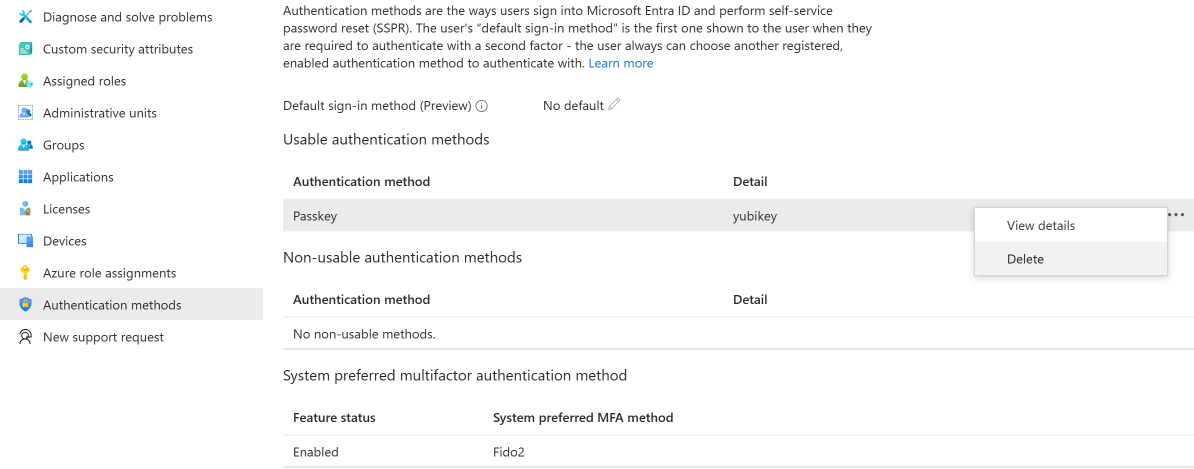
- Go to Entra portal > Users > [search for user] > Authentication methods
- Review the registered passkeys and other methods
- If the user has another passkey on a different device, they can sign in with that - no TAP needed
Step 4: Issue a Temporary Access Pass (if needed)
If the user has no other usable sign-in methods, issue a TAP. See Issuing Temporary Access Passes for the detailed procedure.
Recommended TAP settings for device loss recovery:
- Duration: 1 hour (enough time to sign in and register a new passkey)
- One-time use: Yes (prevents reuse if intercepted)
Communicate the TAP to the user via a secure channel - read it over the phone during the verified call, or deliver it in person. Never send a TAP via unverified email.
Step 5: User registers a new passkey
Guide the user through re-enrollment:
- Sign in at https://mysignins.microsoft.com/security-info using the TAP
- Add a new passkey (Authenticator, security key, or Windows Hello depending on their available device)
- Test the new passkey by signing out and back in
If the user needs help with setup, point them to the appropriate guide:
Step 6: Remove the old passkey
Once the new passkey is confirmed working:
- Go back to Entra portal > Users > [user] > Authentication methods
- Find the old passkey (identified by device name and registration date)
- Click Delete to remove it
Don’t rely on the user to do this - they may forget, and a stale credential is a loose end.
Step 7: Initiate remote wipe (if applicable)
If the lost device was organization-managed (Intune-enrolled):
- Phone: initiate a remote wipe from Intune or the Entra portal
- Laptop: initiate a remote wipe or selective wipe depending on policy
- Security key: no remote wipe possible - the PIN protects it, but document the loss
If the device is personal (BYOD), advise the user to:
- Use Find My iPhone / Google Find My Device to lock or erase it
- Change their personal account passwords (Apple ID, Google account) if they suspect theft
Step 8: Log the incident
Record:
- Date and time of report
- Device lost (type, managed/personal)
- Identity verification method used
- TAP issued (yes/no, duration)
- New passkey registered (method and device)
- Old passkey removed (yes/no)
- Remote wipe initiated (yes/no)
- Any anomalies or concerns
This log supports security reviews and helps identify patterns (frequent losses from one user, clustered incidents that might indicate targeting).
Special cases
User lost both their phone and laptop
They have no device to register a passkey on. Options:
- Issue a TAP and have them sign in from a colleague’s or shared computer to register a security key (if you have spare keys available)
- If using syncable passkeys: once they set up a replacement phone with the same Apple ID or Google account, the passkey may restore automatically
- Temporary solution: TAP for immediate access, schedule a follow-up to register a passkey when they have a replacement device
User’s security key PIN is locked
After too many failed PIN attempts, FIDO2 keys lock. The key must be factory reset, which erases all stored passkeys. Treat this the same as a device loss - verify identity, issue TAP, re-enroll.
User left the organization
If a departing employee doesn’t return their security key, disable their account through normal offboarding. The key is useless without an active account to authenticate against.