Subtitle: How attackers are STILL phishing your users
I feel like this comes back around every few months. We get more reports of user’s being phished by people outside their organization in Microsoft Teams. Last time I tested this was more than 3 years ago. Presumably that would have been when Microsoft expanded some of the tenant controls for locking down this behavior. The problem? It’s still on by default. Let’s take a brief look into what this technique looks like, why it works, and how to fix it.
The Phish
To perform this type of attack, all you need is a personal Microsoft account. Basically, if you can get a gmail account, you can carry out the phish. When logged into my personal Teams account, I can start new chats with users just by knowing their email.


Just start typing, and Teams will enumerate the user if it exists. Based on my understanding, the user will populate here if the Teams configuration allows it, and if the user has previously logged into Teams. Regardless, if you can click it, you can start the chat.
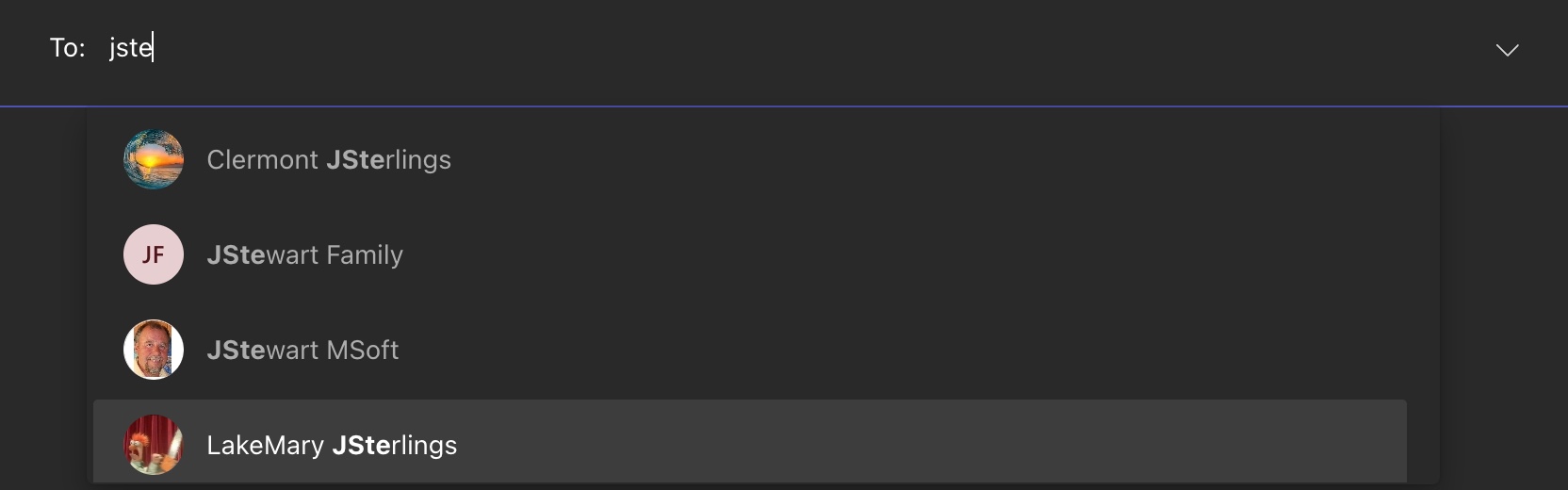
You don’t even need to know an email. Just type wildly or pick your favorite Administrator icon.
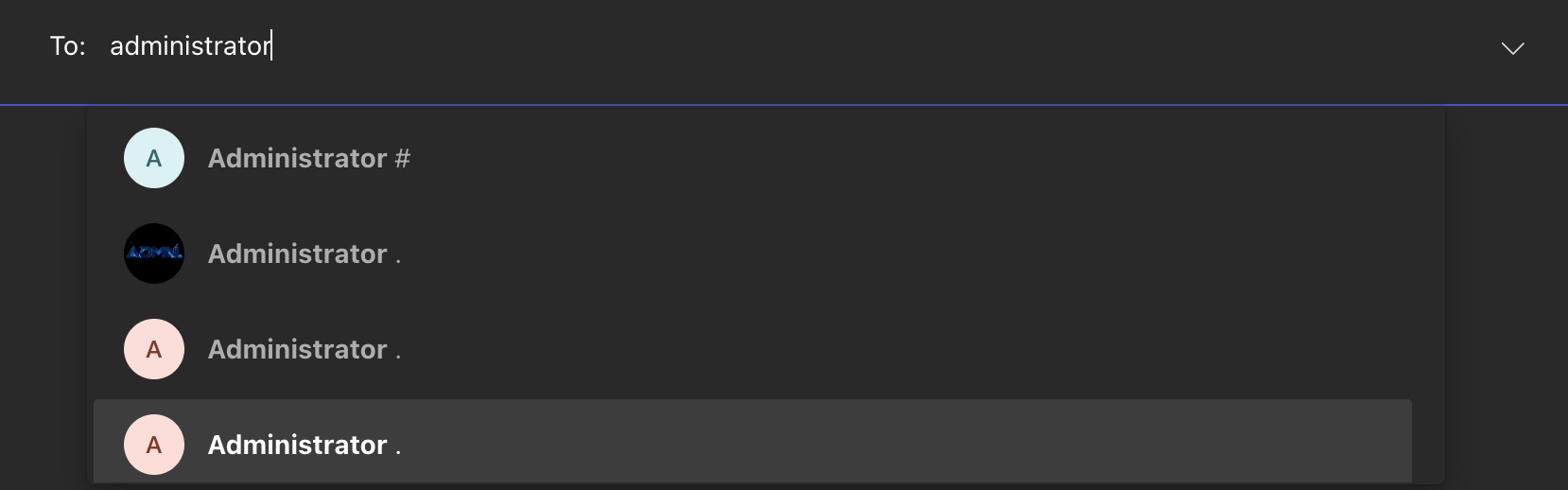
Give em your best shot.
End User Perspective
The good news here is that there’s a big fat warning that appears and the end user must accept the chat before continuing.
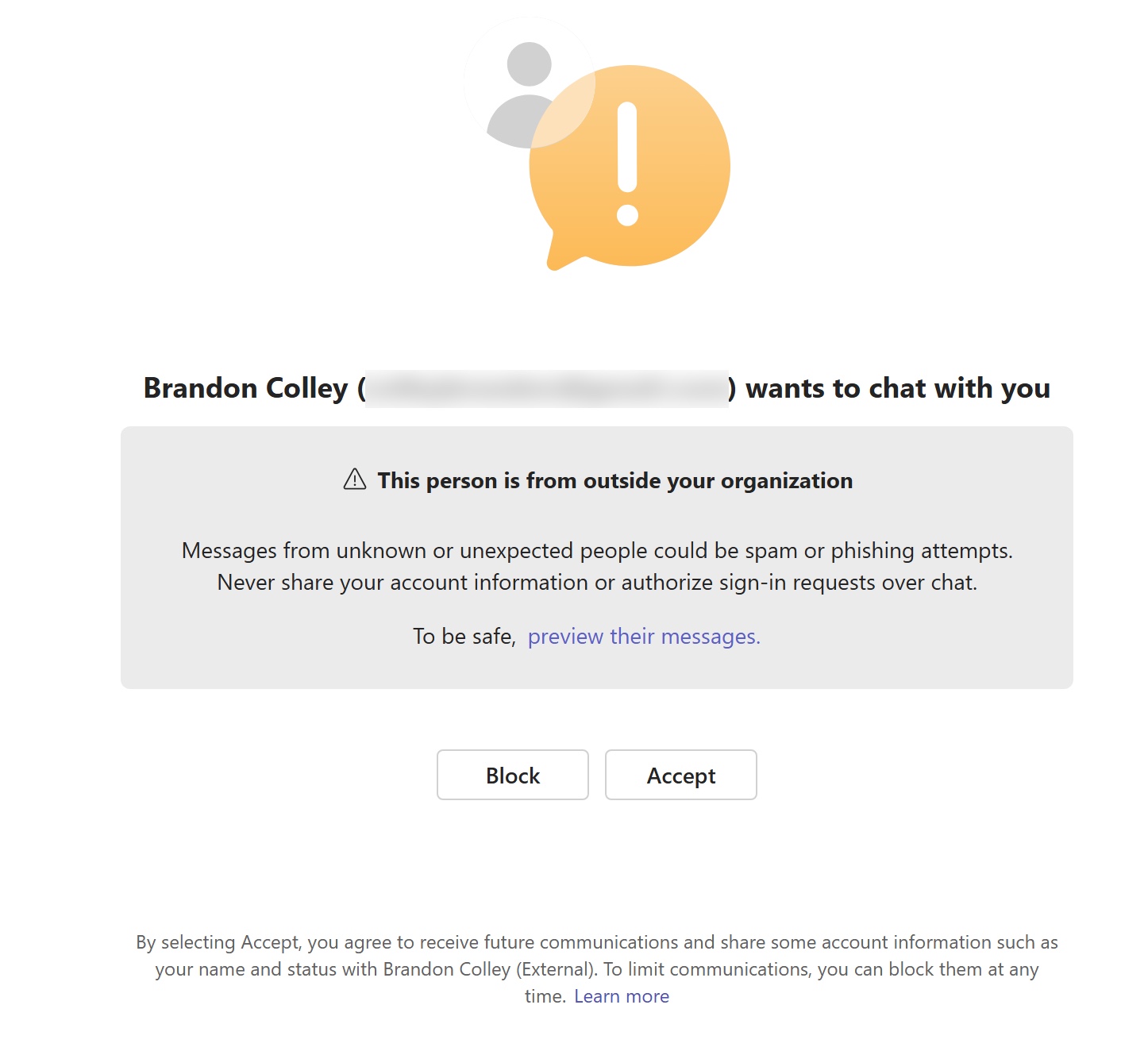
The bad news is that end users are gonna end user. A well crafted message can be previewed and accepted, starting a two-way communication channel.
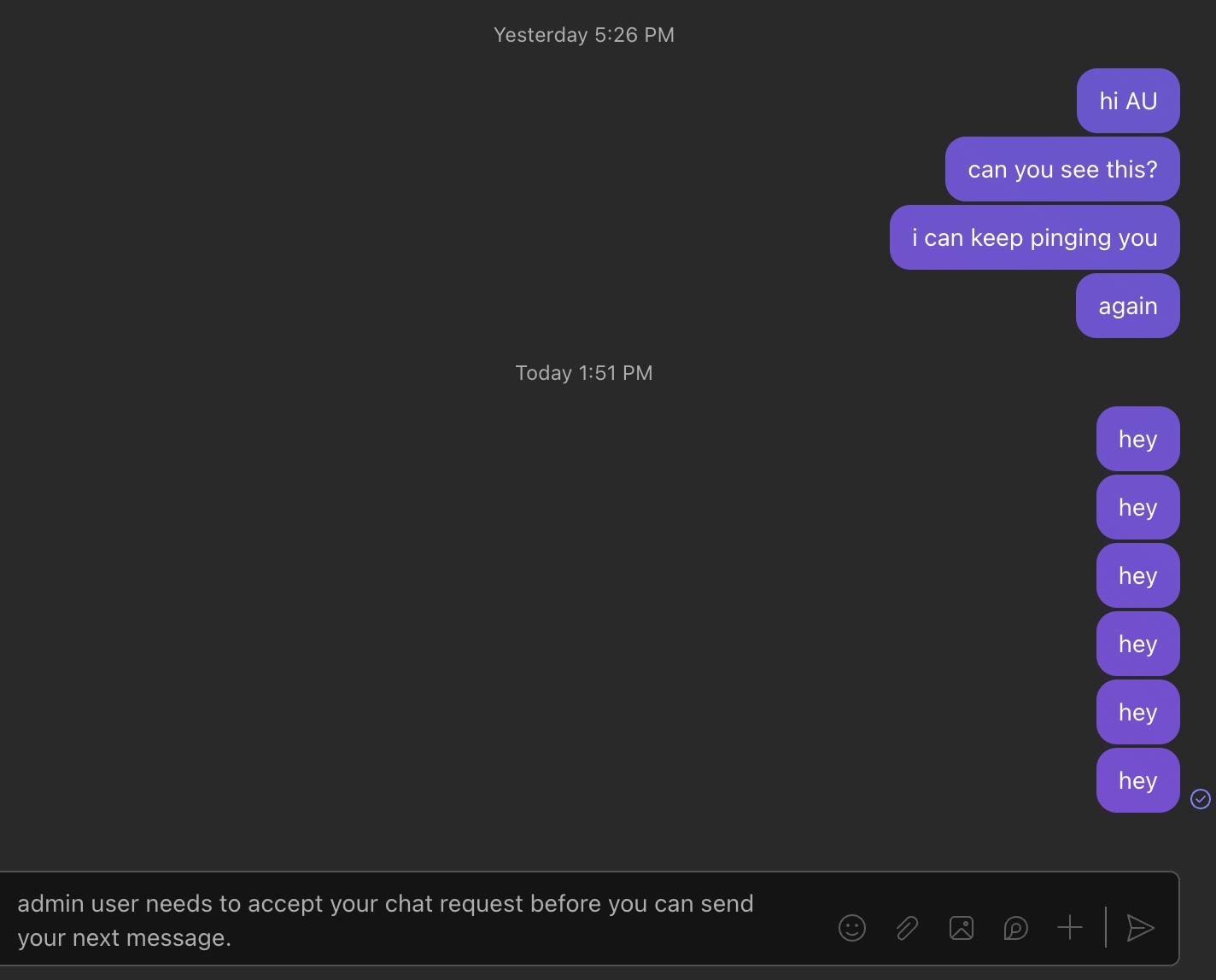
What’s interesting is that even if the chat hasn’t been accepted, the imfamous nudge pops up. Based on my testing, the attacker has 10 tries to get your attention before they have to stop pinging you. I started to see this as kind of an MFA fatigue style attack until I hit the 10 chat limit.
The Fix
Both anonymous enumeration and a pretty abusive phishing technique are easily executed. The actual good news is that a fix is possible, regardless of your business practices.
Here is what your default External Communications configuration looks like.
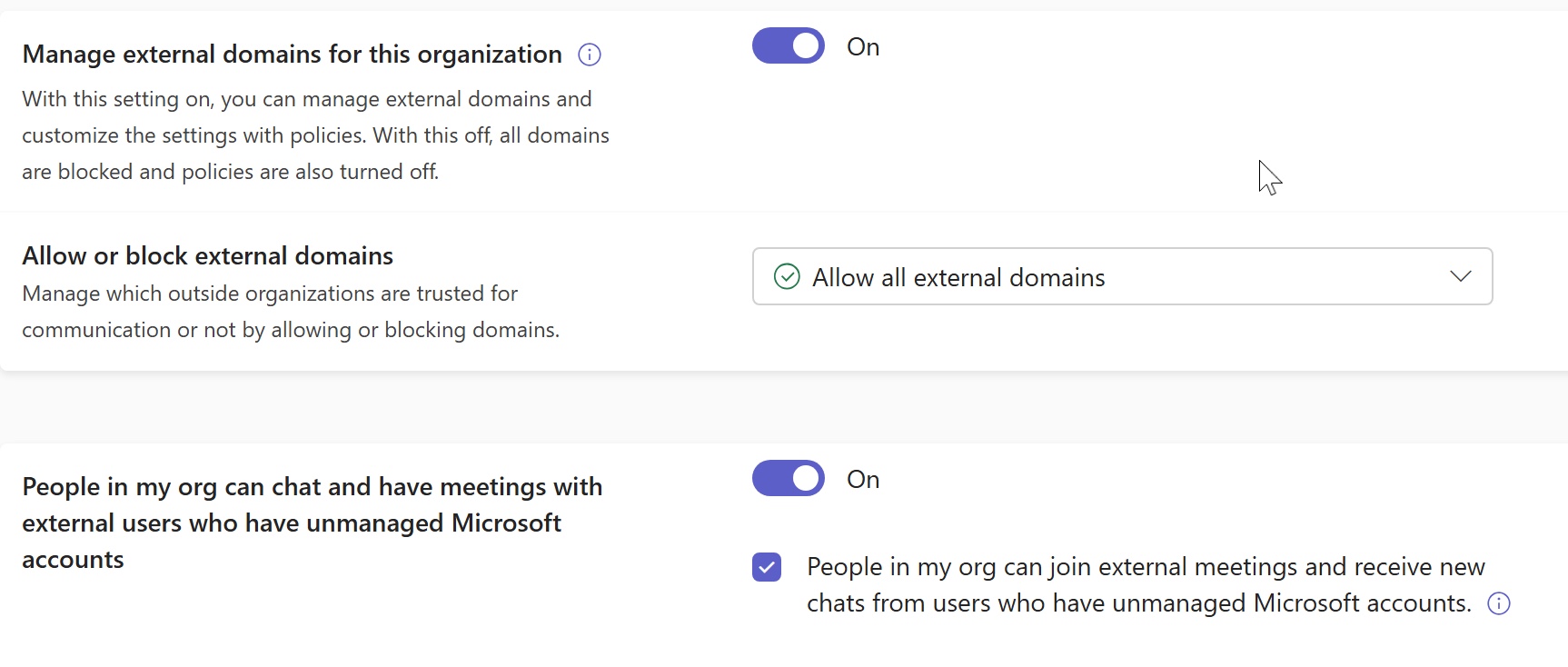
The best fix is to block all external domains and prevent users from communicating at all with unmanaged (personal) Teams accounts. This Microsoft article outlines more information and options with the configuration.
If you need to communicate with external domains, configure those here. Alternatively, you can set them up as guest users and not have to manage it here.
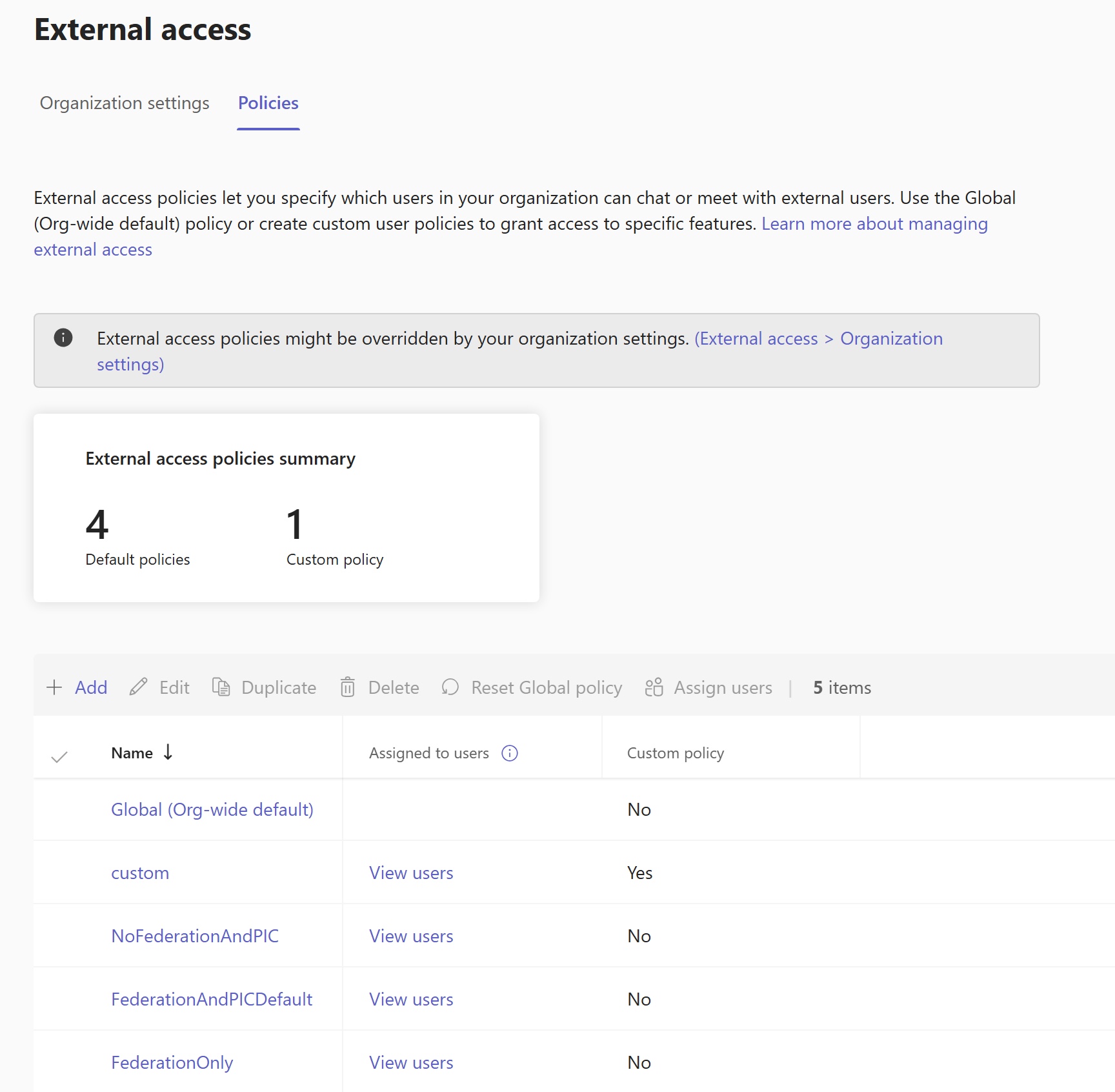
If you need some users to be open to all communication (for some unknown reason) you can play with the custom policies to manage the configuration. Presumably, you’d target specific users to be included as the exception and not your entire user base. As noted, the organizational policy will take presedence so you’ll need to make sure you propertly restrict the remaining users with a policy of their own. Don’t take this as advice though as it’s completely untested. But if you do figure this out, let me know and I’ll add it!
Wrapping Up
I’ve been seeing orgs do this for the last 3 years now and I’m reminded by a great quote that fits in so many situations like this…
If it’s stupid but it works, it isn’t stupid.